Audit your projects, create reserves, submit situations in natural language from Claude, Cowork or GitHub Copilot. No heavy installation, no data duplication.
If you have never come across the acronym, this section is enough.
MCP stands for Model Context Protocol. It is a standard socket, like a power outlet: your AI assistant (Claude, Cowork, GitHub Copilot) on one side, PunchLink on the other. Any assistant that follows the standard plugs straight in — no bespoke development, no custom gateway, no exporting your data somewhere else.
Without MCP, your assistant knows nothing about your project: you have to copy and paste extracts from spreadsheets or PDFs. With MCP it queries PunchLink directly, with your permissions and nothing more. Every call is logged.
The assistant only asks PunchLink for tools. Your data stays with PunchLink: it is never used to train any model.
The PunchLink MCP connector is based on the MCP (Model Context Protocol) standard, open and supported by all major professional AI assistants.
"Give me a complete audit of the REVAMP project" — response in 2 seconds with progress, reserves, payments, HSE, DOE (Executed Works File / as-built). Every figure is traceable.
"Create a blocking reserve on the piping lot: P-103 tapping weld to redo" — executed directly. No need to open PunchLink.
"Summary for weekly COMEX" — structured markdown report with progress, critical alerts, pending amounts, in 5 seconds.
Choose the AI assistant you already use.
The official Anthropic application. Native connector via Settings → Connectors.
2 minutesAnthropic's "non-developer" mode. One-click OAuth sign-in — no key to handle.
5 minutesRelevant for enterprises validating only Copilot (Microsoft). Native Bearer headers.
The MCP connector is already available on your account: there is nothing to activate. In Settings → MCP connector, click + New API Key. Give it a name (e.g. "Claude Desktop personal").
The key appears in the form pl_live_XXXXXXXX.... Copy it immediately: it will never be displayed again.
With Claude Desktop and Cowork, the one-click OAuth connection means you do not even need a key.
Recommended method: the native connector (Claude Desktop 1.0+).
PunchLinkhttps://www.punchlink.app/mcpCowork is Claude's "non-developer" mode. Same address as everywhere else, with OAuth sign-in: no key to handle.
PunchLink · URL https://www.punchlink.app/mcp — no key, advanced fields empty.Particularly relevant in enterprise: most IT departments authorize Copilot (Microsoft) for professional use. The MCP connector integrates without additional installation.
MCP: Add Server and select.punchlinkhttps://www.punchlink.app/mcpAuthorization, value Bearer YOUR_KEY@punchlink or in Agent mode: "Audit of REVAMP project".If you are comfortable, create .vscode/mcp.json at the root of a project:
The PunchLink MCP connector exposes 10 tools, classified in 2 categories: read (risk-free) and write (with rights verification).
| Tool | Description | Rights |
|---|---|---|
list_projects | List your active projects with KPIs | Any role |
get_project_summary | Complete project audit (KPI, reserves, HSE, payments) | Project member |
list_reserves | List filtered reserves (criticality/status/lot) | Project member |
list_orders_with_payments | Financial view: paid / pending / validated | Project member |
search_doe | Search in DOE documents | Project member |
create_reserve | Create a reserve (minor/major/blocking) | PM/AMO/PC/Sup./OPC/HSE/Vendor |
submit_situation | Submit a situation on an order | Order vendor |
validate_situation | Validate or reject a situation | PM/AMO/PC/Procurement |
create_demo_project | Create an empty project for testing | Any role |
invite_member | Invite a member by email | PM/AMO/PC |
"Give me a complete audit of project [NAME] for my 9am meeting"
"Summary of all my projects: progress, blocking reserves, pending amounts"
"On project [NAME], which orders have pending payments for 30+ days?"
"Create a blocking reserve on lot [LOT]: [description]"
"Is situation 4700030247 compliant with the actual progress percentage?"
"Which blocking reserves have been open for 15+ days on all my projects?"
Technical guarantees provided by the MCP connector.
Each call requires a valid key or an active OAuth session. Missing key → refused.
Keys are stored hashed. Even L2V cannot read them in plain text.
L2V can instantly suspend all MCP access in case of incident.
Each tool verifies you are a project member before returning data.
Each call is logged: who, what, when, success/failure.
The AI only requests tools. Your PunchLink data stays in PunchLink.
| Error | Cause | Solution |
|---|---|---|
NO_API_KEY | Key not transmitted | Check the Authorization header (Bearer pl_live_...) — or redo the OAuth sign-in. Keys in the URL are refused. |
KEY_INVALID | Wrong or truncated key | Regenerate + copy in full |
KEY_NOT_FOUND_OR_REVOKED | Key revoked | Generate new key |
USER_SUBSCRIPTION_INACTIVE | PunchLink account without an active plan | Check the account status with your administrator |
MCP_DISABLED_GLOBALLY | L2V maintenance | Retry in 10 min, otherwise contact@punchlink.app |
| Project not accessible | Not a project member | Request access from PM |
The MCP connector is included in your plan. Generate your API key and connect your assistant in 3 minutes.
Any question? contact@punchlink.app · +33 9 72 10 52 94
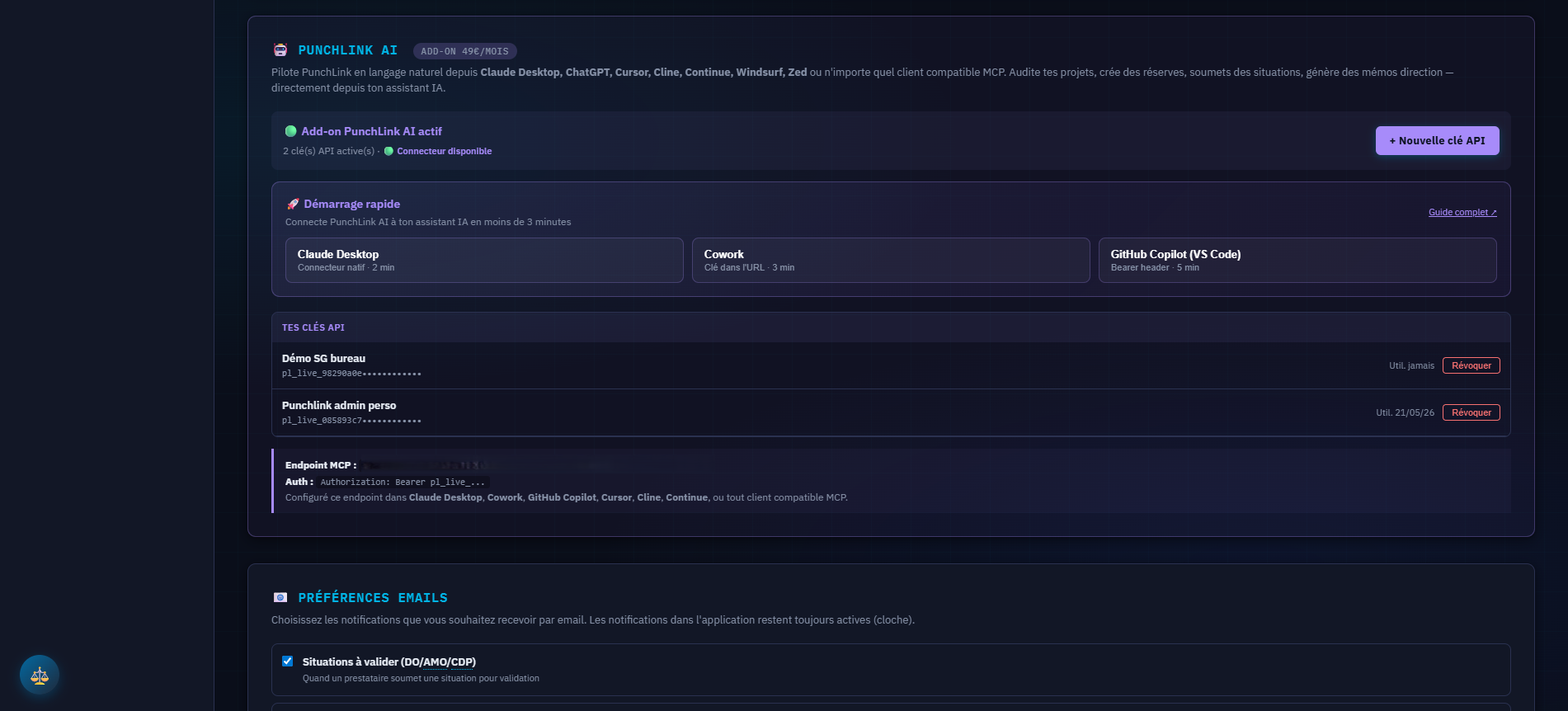
Manage your projects in natural language from Claude Desktop, ChatGPT, Cursor or Copilot. 10 database tools exposed as MCP: project audit, reserve creation, situation submission, validation, DOE search, member invitation. Included in every plan, disableable per project for sensitive clients.
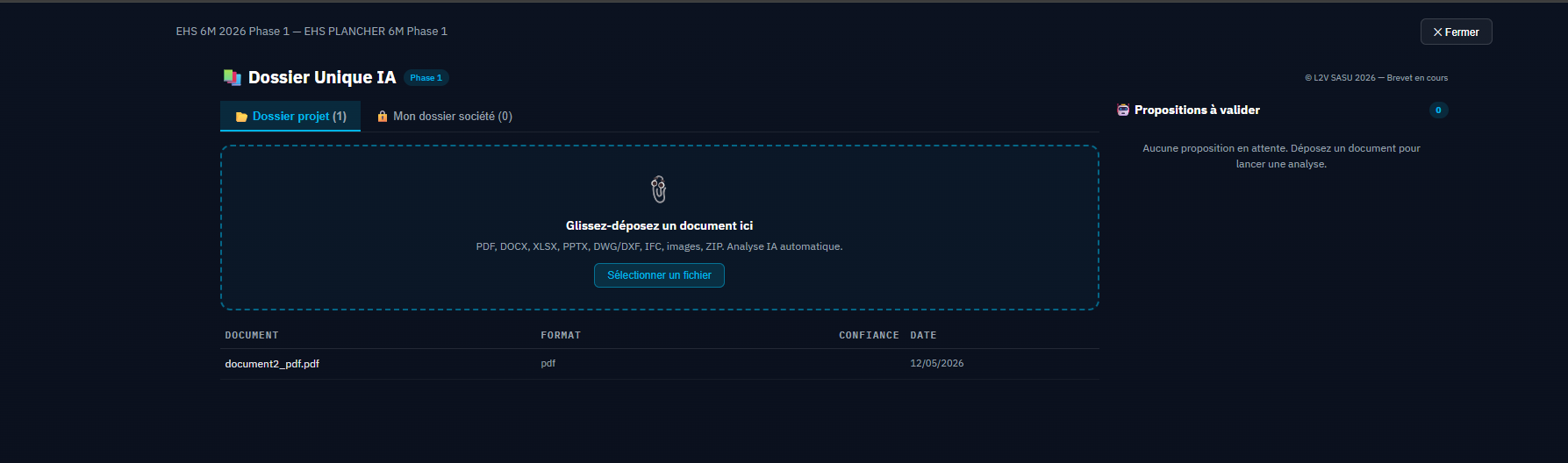
Drag and drop a document — any format: PDF, Word, Excel, PowerPoint, DWG/DXF plans, BIM IFC model, site ZIP. The AI analyzes, classifies, routes to the right module with a confidence score. L2V proprietary method, INPI prior-art filing with INPI.
